

AI Integration Quick Reference
AI Integration Quick Reference
| Field | Value |
|---|---|
| Goal | Customize UI Kit appearance (colors, fonts, dark mode) via theme provider |
| Provider | CometChatThemeProvider — wrap your app to enable theming |
| Import | import { CometChatThemeProvider } from "@cometchat/chat-uikit-react-native"; |
| Set mode | <CometChatThemeProvider theme={{ mode: "light" }}> or "dark" |
| Override colors | theme={{ light: { color: { primary: "#F76808" } } }} |
| Component styles | theme={{ light: { conversationStyles: { ... } } }} |
| Key tokens | primary, textPrimary, background1, neutral50, extendedPrimary500 |
| Constraints | Colors must be hex values, theme merges with defaults (deep merge) |
| Full token list | Colors | GitHub source |
CometChatThemeProvider.
Theming Contract
InputsCometChatThemeProviderwrapper with optionalthemeprop- Theme mode:
{ mode: "light" }or{ mode: "dark" } - Color overrides:
{ light: { color: { primary: "#F76808" } } } - Component-specific styles:
{ light: { conversationStyles: { ... } } }
- Style prop on component (highest priority)
- Custom theme via
CometChatThemeProvider - Default theme (lowest priority)
- Primary color changes buttons, outgoing bubbles, and active states
- Background tokens change panels and surfaces
- Typography tokens change fonts across the UI
- Component styles override specific component appearances
Top Tokens (Quick Mapping)
For the complete list, see Colors.| Token | Common Usage |
|---|---|
primary | Primary accent color (buttons, outgoing bubbles, active states) |
extendedPrimary500 | Mid primary shade (secondary accents/hover) |
extendedPrimary900 | Darker primary shade (outgoing bubble shade) |
neutral50 | White/dark surface (light: #FFFFFF, dark: #141414) |
neutral300 | Neutral surface (incoming bubbles/panels) |
background1 | Main app background |
background2 | Secondary/panel background |
textPrimary | Primary text color |
textSecondary | Secondary/caption text |
info, warning, success, error | Semantic state colors |
Using Theming in Your Project
By default, the theme is automatically selected based on the system settings, ensuring that your app aligns with the user’s preferred light or dark mode unless you choose to override it with a custom theme. TheCometChatThemeProvider is used to apply a custom theme to your components. By setting the theme prop with a specific mode, such as { mode: 'dark' }, you can override the default system theme and ensure that the UI is displayed in the desired light or dark mode. This allows you to provide a consistent visual experience based on the selected theme mode.
Here’s an example of how to explicitly set the theme mode to light:
- TypeScript

Customization
To customize the primary color in your app, you can override the primary color attribute in the theme. Here’s how to override the primary color for the light theme:- TypeScript
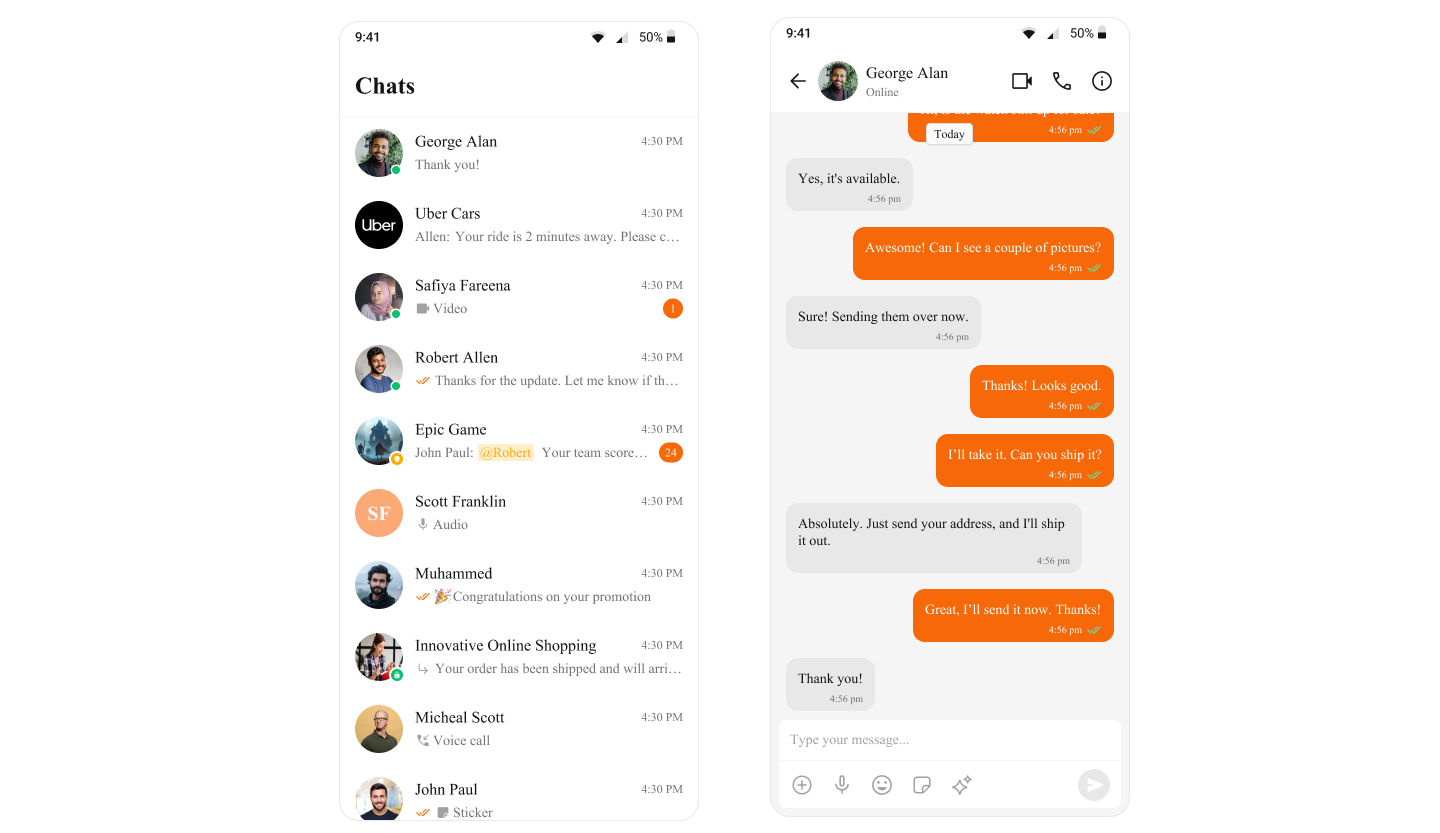
Overriding the Theme for Specific Components by Customizing Style Properties
The following example shows how the light theme for theCometChatConversations component is overridden directly by setting custom theme properties within the CometChatThemeProvider. This ensures that CometChatConversations uses a specific light theme, independent of the global theme applied to the rest of the app. The light theme is customized further by defining specific styles, such as the background color for the conversation container. This approach allows you to customize the theme for specific components while keeping the global theme intact.
- App.tsx
Supplying Custom Theme to Specific Components by wrapping them in a separate CometChatThemeProvider
The following example shows how the theme for theCometChatConversations component is specifically overridden by wrapping it in a separate CometChatThemeProvider. This allows CometChatConversations to use a dark mode theme, independent of the global theme applied to the rest of the app. Additionally, the dark theme is further customized for the component by defining specific styles, such as the background color for the conversation container. This approach enables you to tailor the theme for specific components while maintaining the overall consistency of the global theme.
- App.tsx
When customizing theme properties, whether by overriding specific properties or supplying a completely custom theme, the provided values will be deeply merged with the default theme. This means that only the specified properties will be overridden, while all other properties will retain their default values. Additionally, if a style is passed through props, it will take priority over the style provided via the theme. The deep merge occurs in the following order of priority:
- The style prop (highest priority)
- The custom theme
- The default theme (lowest priority)