FieldValue
Package@cometchat/chat-uikit-react-native
Key classCometChatTextFormatter (abstract base class for custom formatters)
Required setupCometChatUIKit.init(UIKitSettings) then CometChatUIKit.login("UID")
PurposeCreate custom text shortcuts for quick message composition by extending CometChatTextFormatter
ExtensionMessage Shortcuts extension must be enabled in CometChat Dashboard
Sample appGitHub
RelatedMentions Formatter · Custom Text Formatter · All Guides

Overview

The ShortCutFormatter class extends the CometChatTextFormatter class to provide a mechanism for handling shortcuts within messages. This guide walks you through the process of using ShortCutFormatter to implement shortcut extensions in your CometChat application.
The Message Shortcuts extension must be enabled in your CometChat Dashboard for this feature to work.

Setup

1

Create the ShortCutFormatter Class

Define the ShortCutFormatter class by extending the CometChatTextFormatter class:
import { CometChat } from "@cometchat/chat-sdk-react-native";
import {
  CometChatTextFormatter,
  SuggestionItem,
} from "@cometchat/chat-uikit-react-native";

export class ShortCutFormatter extends CometChatTextFormatter {
  constructor() {
    super();
    this.trackCharacter = "!"; // Character that triggers shortcut suggestions
  }
}
2

Override the search() Method

Override the search() method to fetch shortcuts based on the entered search text:
search = (searchKey: string) => {
  CometChat.callExtension("message-shortcuts", "GET", "v1/fetch", undefined)
    .then((data: any) => {
      if (data && data?.shortcuts) {
        let suggestionData = Object.keys(data.shortcuts)
          .filter((key) =>
            searchKey
              ? key.toLowerCase().includes(searchKey.toLowerCase())
              : true
          )
          .map((key) => {
            return new SuggestionItem({
              id: key,
              name: data.shortcuts[key],
              promptText: data.shortcuts[key],
              trackingCharacter: "!",
              underlyingText: data.shortcuts[key],
            });
          });
        this.setSearchData(suggestionData);
      }
    })
    .catch((error) => {
      console.error("Error fetching shortcuts:", error);
    });
};

// Return null in fetchNext if there's no pagination
fetchNext = () => {
  return null;
};

Usage

Initialize an instance of ShortCutFormatter and pass it to the message composer via the textFormatters prop:
import React from "react";
import { View } from "react-native";
import { CometChat } from "@cometchat/chat-sdk-react-native";
import {
  CometChatMessageHeader,
  CometChatMessageList,
  CometChatMessageComposer,
} from "@cometchat/chat-uikit-react-native";
// Import your custom ShortCutFormatter class defined above
import { ShortCutFormatter } from "./ShortCutFormatter";

function ChatScreen(): React.JSX.Element {
  const [chatUser, setChatUser] = React.useState<CometChat.User | undefined>();

  React.useEffect(() => {
    CometChat.getUser("uid").then((user) => {
      setChatUser(user);
    });
  }, []);

  const shortcutFormatter = React.useMemo(() => new ShortCutFormatter(), []);

  return (
    <>
      {chatUser && (
        <View style={{ flex: 1 }}>
          <CometChatMessageHeader user={chatUser} />
          <CometChatMessageList user={chatUser} />
          <CometChatMessageComposer
            user={chatUser}
            textFormatters={[shortcutFormatter]}
          />
        </View>
      )}
    </>
  );
}

export default ChatScreen;

Result

When users type the trigger character (!), they’ll see a list of available shortcuts to quickly insert predefined text.
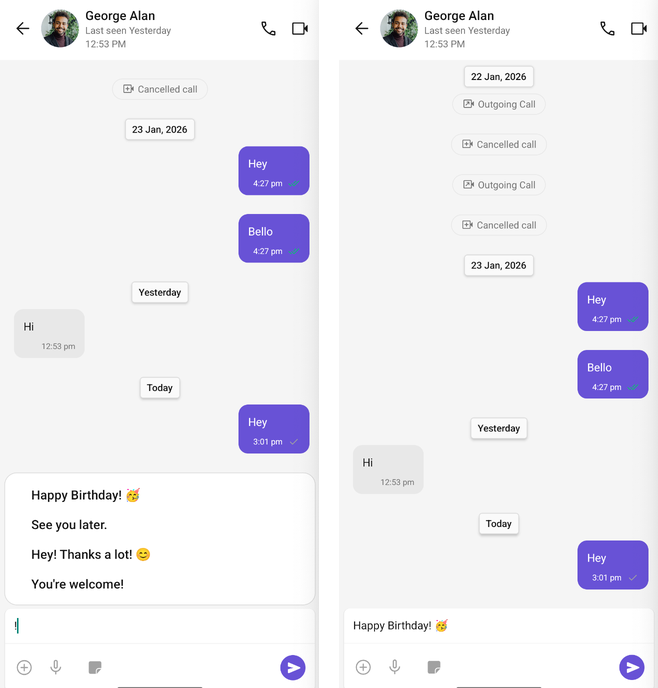
ShortCut Formatter

Next Steps